How do I troubleshoot my firewall on Windows?
How do I troubleshoot my firewall?
- To check your firewall please connect to your server via VNC and login.
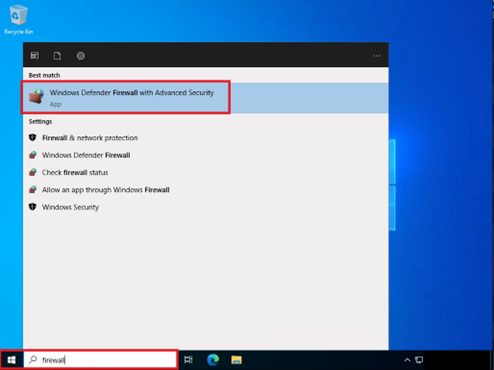
- Press the Windows key on your keyboard or click the Windows icon in the bottom left corner.
- Type “Firewall” and click the “Windows Defender Firewall with Advanced Security".
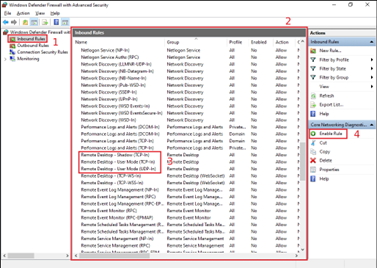
- Click “Inbound Rules” from the top left of the Firewall window.
- From the middle window find “Remote Desktop –Shadow (TCP-In)”, “Remote Desktop – User Mode (TCP-In)”, and “Remote Desktop – User Mode (UDP-In)” and select them all.
- Once selected, press “Enable Rule” on the right hand side.
- Keep in mind that if you have changed your default RDP port (3389) to something else – you will need to create a rule for that port and enable it.
In case you do not have mentioned rules listed, you can scroll to the right in the middle window and find port “3389” and enable those rules that have that port listed - Once all those steps are done, changes take effect immediately - try connecting via RDP now.
Was this article helpful?
That’s Great!
Thank you for your feedback
Sorry! We couldn't be helpful
Thank you for your feedback
Feedback sent
We appreciate your effort and will try to fix the article
