What is Dokploy and how do I use it on Contabo?
TABLE OF CONTENTS
What is Dokploy?
Dokploy is an open-source PaaS platform that that allows you to deploy and manage applications and databases.
After ordering your Contabo VPS/VDS, you'll receive your credentials in your order confirmation email. The initial password for your 1-Click application will be the one you set during the order process. You can also find all your login information anytime in the Contabo Customer Panel, under the detailed view of your VPS/VDS
System requirements
| OS | Ubuntu 24.04 LTS | |
| Minimum | Recommended | |
| RAM | 2 GB | 2 GB |
| Storage | 30 GB | 100 GB |
| CPU | 2 | 4 |
| VPS | Cloud VPS 10 | Cloud VPS 20 |
| VDS | Cloud VDS S | Cloud VDS S |
What can you do with Dokploy?
Dokploy allows you to:
- Deploy, run, and scale Docker-based apps
- Manage infrastructure, monitoring, and backups
- Automate workflows
- Operate across multiple servers
How to install Dokploy?
⚠️ Firewall Notice: If you are using the Contabo Firewall (see Firewall: What is it and how does it protect my VPS/VDS?), make sure to allow the required ports for accessing and managing your application:
- 22 (SSH) - for server access
- 80 (HTTP) and 443 (HTTPS) - for web access to the application
Step 1: Log in to the Customer Control Panel
Log in to the Customer Control Panel.
Navigate to Servers & Hosting - VPS/VDS.
Locate the VPS/VDS where you want to install Dokploy.
Step 2: Start the installation
Click the Quick Action (⋮) menu next to the VPS/VDS.
Select Reinstall.
Step 3: Select Application Installation
In the installation window, switch to the Application Installation tab.
From the application list, select Dokploy.
Step 4: Set the admin password
Enter an Admin Password.
Make sure to store the password. This password is required to access the server via SSH.
Review the information note:
- Contabo provides technical support for the VPS/VDS
- For Dokploy configuration and usage, please refer to the Dokploy documentation.
Step 5: Start the installation
Click Install to begin.
Dokploy will be installed.
⏳ The installation may take several minutes.
Step 6: Access your application
After installation, you can access your application directly in your browser.
https://vmdXXXXX.contaboserver.net/
You can find the URL in the Customer Panel:
- Navigate to your VPS/VDS via Servers & Hosting
- Click on your instance under Instance Name
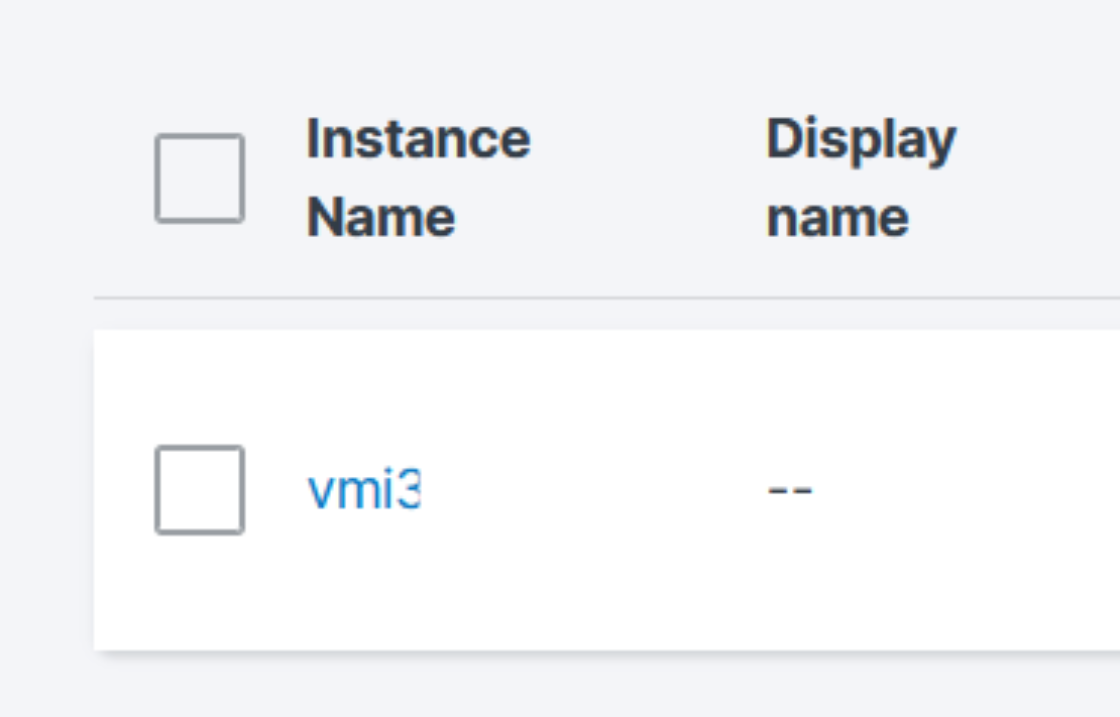
- Scroll down to Applications and click on the URL.
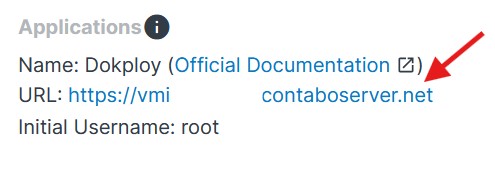
⚠️Please note that it may take up to 30 minutes for the application to be fully installed and available.
Step 7: Sign in
Upon clicking on the URL, sign in to Dokploy:
- Username: root@hostname (e.g. root@vmi123456)
Example: If your URL ishttps://vmi123456.contaboserver.netyour username will beroot@vmi123456.contaboserver.net - Password: admin password that you set up during installation
At this point, Dokploy is installed and running on your VPS/VDS.
Resources
Was this article helpful?
That’s Great!
Thank you for your feedback
Sorry! We couldn't be helpful
Thank you for your feedback
Feedback sent
We appreciate your effort and will try to fix the article
