Firewall: What is it and how does it protect my VPS/VDS?
Contabo Firewall is a feature that comes free of charge with your VPS/VDS. You can use it to protect your VPS/VDS from unwanted incoming network traffic. Please note that this is Contabo's firewall feature, not the OS-level firewall. For guidance on configuring OS-level firewalls such as UFW (Linux) or Windows Defender Firewall, see How to reduce outgoing traffic.
When you assign your VPS/VDS to an active firewall:
- All incoming traffic is blocked by default.
- You can allow traffic based on specific IP addresses, port ranges, or protocols using your configured rules.
⚠️Please note that with this add-on, outgoing traffic remains fully unrestricted. (See tips on how to reduce outgoing traffic).
How to activate the Firewall feature?
The Firewall feature comes with all new and existing VPS/VDS instances. You can add multiple VPS/VDS to your firewall.
1. Create a new firewall
1. Log in to the Customer Panel.
2. Go to the Firewalling section under Network Services.
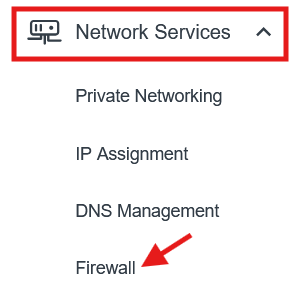
3. Create a new firewall
4. Enter the name (and optional description) of the firewall and click Create firewall.
2. Configure the rules
By default, a firewall blocks all inbound traffic. This is ensured by a permanent DROP rule that cannot be deleted. To allow specific traffic, you need to create Accept Rules to allow specific traffic.
Flexible rules: You can define rules based on specific IP addresses, port ranges, or protocols. This allows you to precisely control which traffic is allowed to access your VPS/VDS.
⚠️Please note: Firewall rules currently cannot be filtered, and traffic logs are not yet available in the Customer Panel.
1. Once the firewall is created, access it’s details by clicking on the firewall’s name
2. Configure the firewall rules
Under 'Inbound Rules', click on Add rule to firewall.
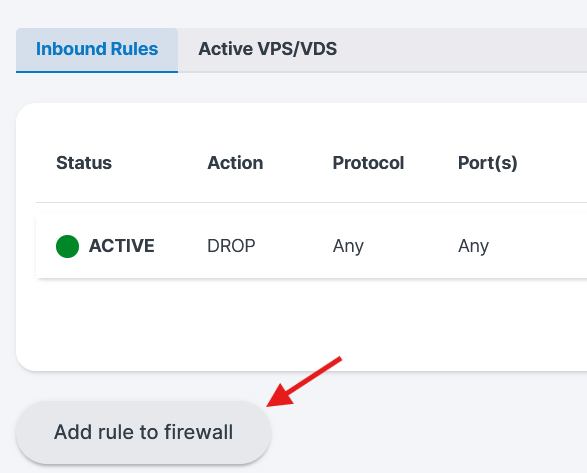
3. Define the traffic type
In the Type of Traffic dropdown:
- You can select predefined traffic types (e.g., HTTPS, SSH, etc.)
Or choose a custom configuration
If you're unsure, selecting a predefined traffic type is recommended.
4. Select the Protocol
Note: We provide several predefined traffic types that are already prefilled to make configuration easier, so you don’t need to create a custom setup for common use cases.
Under Protocol, choose:
TCP (most common, used for web, SSH, mail, etc.)
UDP (used for fast, connectionless communication, e.g., DNS (53), online gaming servers, VoIP services, VPN services)
ICMP (used for network diagnostics, e.g. ping, traceroute)
For most standard services (SSH, HTTP, HTTPS), choose TCP.
5. Specify the Ports
In the Port(s) field, enter the port number(s) you want to allow.
- The number should be between 0 and 65535
- You can enter a single port (e.g. 22), or multiple ports separated by commas
- You can define a port range (e.g. 8000-8100)
Examples:
22→ SSH80→ HTTP443→ HTTPS3306→ MySQL
6. Define the Source
In the Source(s) field, you define from which IP address or network traffic is allowed to reach your VPS/VDS.
You have the following options:
- Any → Allows traffic from all IP addresses (IPv4 and IPv6)
- Any IPv4 → Allows traffic from all IPv4 addresses only
- Any IPv6 → Allows traffic from all IPv6 addresses only
- A specific IP address (e.g. 203.0.113.10)
- A network range in CIDR format (e.g. 203.0.113.0/24)
If you want to allow access from everywhere, select “Any” from the dropdown.
Advanced option:
You can also paste a comma-separated list of IP addresses or networks into the field. Each entry will be automatically converted into a selectable tag.
Example:
203.0.113.10, 198.51.100.0/24
7. Save the rule
- Click Add Rule
- The rule will now appear in your firewall configuration.
Repeat this process for any additional rules you want to allow.
3. Assign instances to the firewall
After configuring rules:
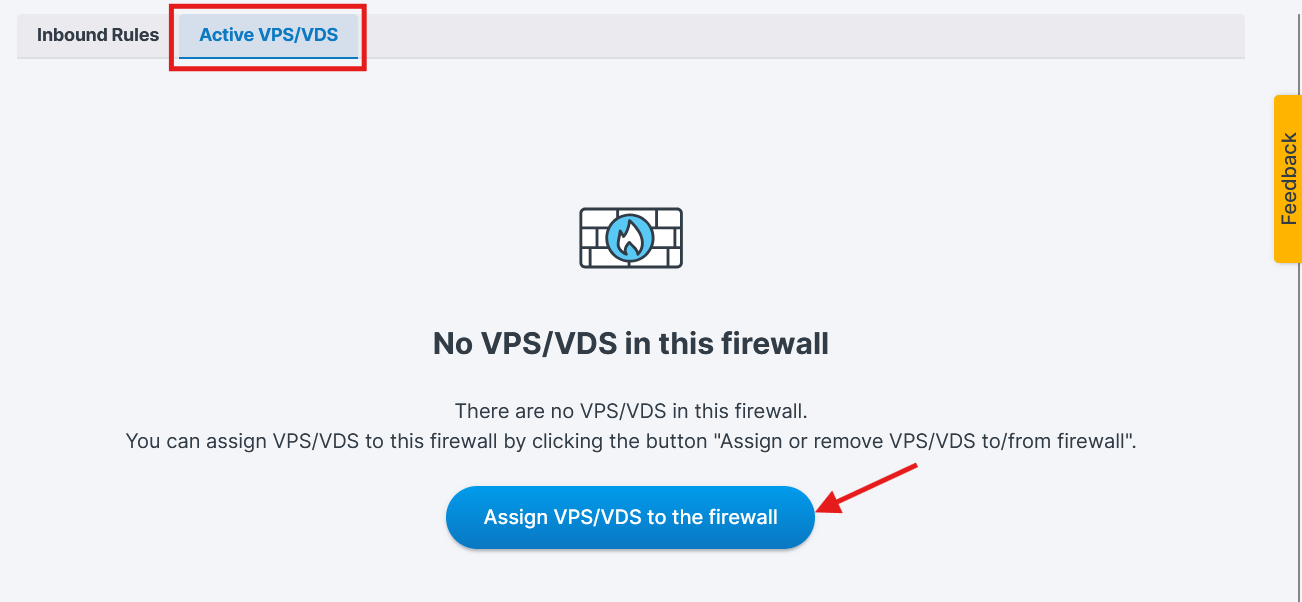
Go to the Active VPS/VDS tab inside the firewall.
Add the VPS/VDS instances you want to protect.
Save changes. You will now see the added instances under the Active VPS/VDS tab.
Once assigned, the firewall rules immediately apply to the instance.
How to disable or delete a firewall
All firewall management actions are available in the Firewall overview section of the Customer Panel.
Disabling a firewall
To disable a firewall:
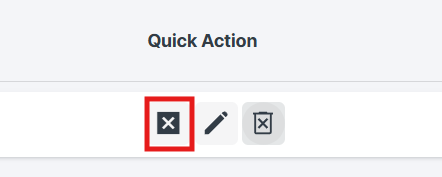
- Go to the Firewall tab.
- Locate the firewall you want to disable.
- Click the X icon under Quick Action.
Disabling a firewall will stop applying its rules to all assigned instances.
Deleting a firewall
To permanently remove a firewall:
- Go to the Firewall tab.
- Locate the firewall you want to remove.
- Click on the bin icon under Quick Action.
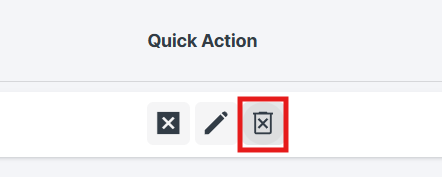
⚠️ Important: Deleting a firewall permanently removes all its rules and cannot be undone.
Was this article helpful?
That’s Great!
Thank you for your feedback
Sorry! We couldn't be helpful
Thank you for your feedback
Feedback sent
We appreciate your effort and will try to fix the article
