How do I update my payment methods?
Table of Contents
How Do I Update My Payment Methods?
Please note that:
- You may change your payment method at most twice within any 24-hour period. If you exceed this limit, your payment method will be automatically switched to manual payment. Depending on your available payment methods, this will be either PayPal or bank transfer. Please note that bank transfer payments may take longer to process and reflect on your account.
- Your account balance must not be negative in order to switch back to automatic payments.
You can update a payment method via the Customer Panel in the Billing & Payment section. Please note that you can only have one payment method selected at a time.
- Login to the new Customer Control Panel.
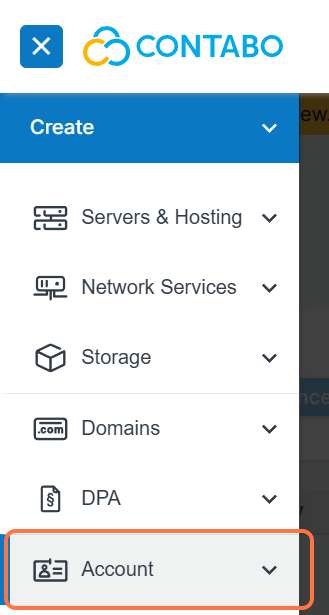
- Click "Account" from the left hand side of the page:
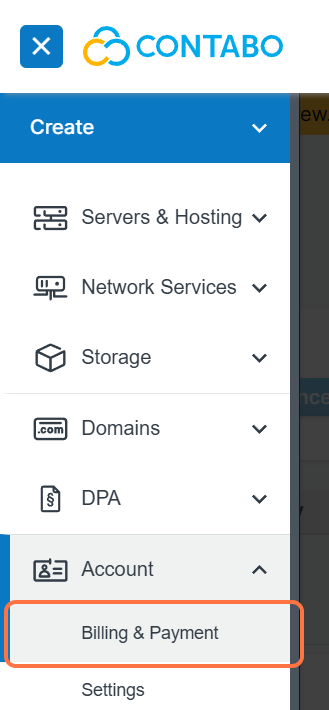
- Next click Billing & Payment from the drop-down menu:
- Click the edit button next to your existing payment method:
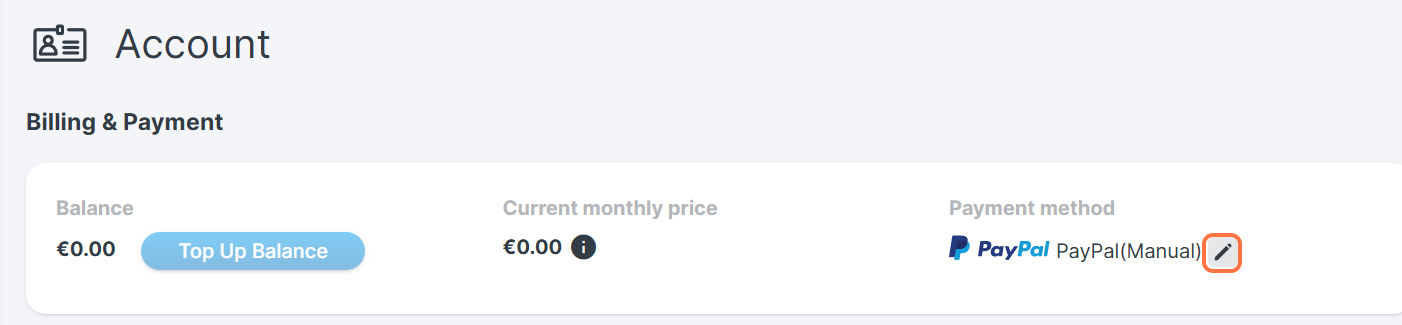
- You will then see a payment method window open on the right hand side of the page. Simply fill out the payment details you would like to use and then click the "Confirm" button to complete the changes.
You can find a list of all our accepted payment methods here.
How do I cancel an automatic payment method?
Once you switch to automated payments, you need to contact support if you want to switch back to manual payments. We generally recommend setting up automated payments, to avoid missing payments.
Which Payment Methods are Accepted by Contabo?
EUR (€)
Credit Card
PayPal
Skrill
Bank Transfer
Direct Debit (for qualifying customers)
USD ($)
Credit Card
PayPal
GBP (£)
Credit Card
PayPal
Payments in cryptocurrencies such as Bitcoin are not accepted.
War dieser Artikel hilfreich?
Das ist großartig!
Vielen Dank für das Feedback
Leider konnten wir nicht helfen
Vielen Dank für das Feedback
Feedback gesendet
Wir wissen Ihre Bemühungen zu schätzen und werden versuchen, den Artikel zu korrigieren
