Why did my payment fail or invoice go unpaid?
If a payment or invoice has failed, there are a few common causes. This article walks you through how to identify and resolve them.
1. Check your card details and account settings
Most payment failures are caused by an issue with the card itself. Please verify the following:
- Your card supports this type of purchase (some cards block online or international transactions).
- Sufficient funds are available for the transaction.
- There are no spending limits or expiration issues.
- Your card supports the currency you are making the transaction in.
- Your card number, CVC, and billing postal code are all correct.
- 3D Secure is enabled if your card supports it.
2. Try basic browser troubleshooting
If your card details are correct, the issue may be browser-related. Try the following:
- Clear your browser's cache and cookies.
- Disable any browser extensions or VPNs, as these can interfere with the payment process.
- Switch to a different browser. We recommend Mozilla Firefox, which offers the best compatibility with our platform.
3. Check your payment method status in the Customer Panel
If a card charge fails, our system may automatically switch your account from automatic card payments to manual PayPal. This means future payments will not process automatically - you will need to complete them manually.
To check your payment method status:
- Log in to the Customer Panel.
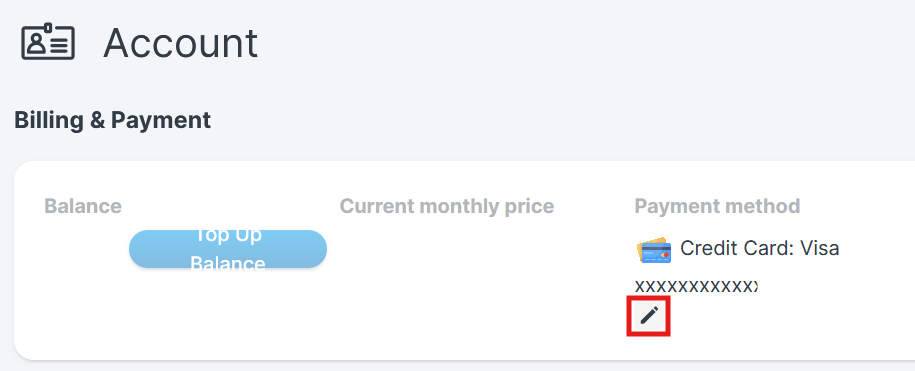
- Navigate to Account - Billing & Payment - Payment method.
- Check whether automatic payments are still active. If they have been disabled and switched to manual payments, you will need to re-add your card or re-enable the automatic payment method.
4. Reactivation fees
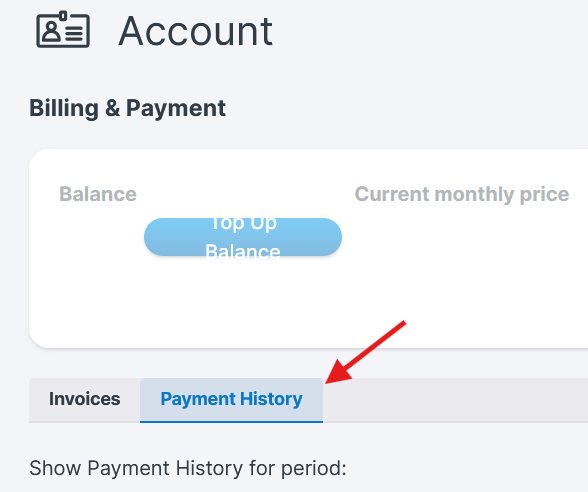
In some cases, a failed payment may result in a reactivation fee being applied to your account. You can review any such fees in the Payment History section of the Customer Panel.
Still having trouble?
If none of the above resolves the issue, we recommend contacting your card issuer directly to check for any blocks or restrictions on your account.
Alternatively, you can switch to a different payment method. See our guide: How do I update my payment methods?
Was this article helpful?
That’s Great!
Thank you for your feedback
Sorry! We couldn't be helpful
Thank you for your feedback
Feedback sent
We appreciate your effort and will try to fix the article
