How do I top up my account balance?
If you have selected a manual payment method, you will need to manually add funds to your account at the end of each billing cycle. This ensures that we can deduct payment for your services.
⚠️Please note that failing to recharge your account on time may result in missed payments, loss of service access, and potential data loss on your server.
To top up your balance:
1. Log in to the Customer Panel
- Log in to the Customer Panel.
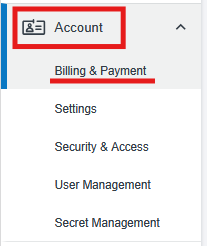
2. Open the Billing & Payment section
- Select Billing & Payment from the Account drop-down on the left side of the page.
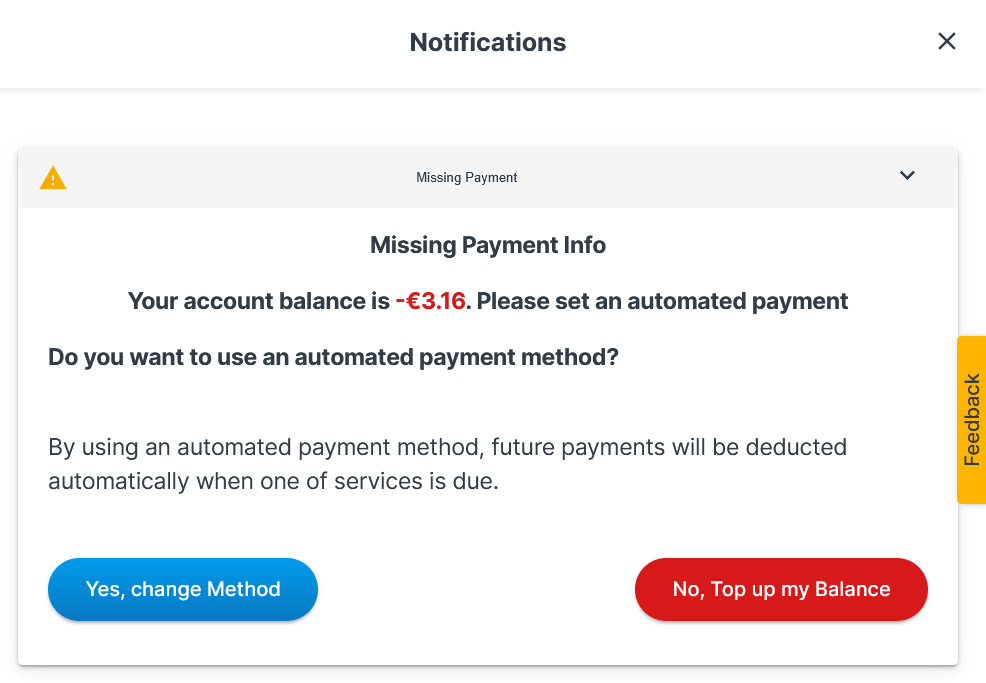
- Alternatively, if you have a negative balance on your account, you will receive a notification to top up your balance or switch to an automated payment:
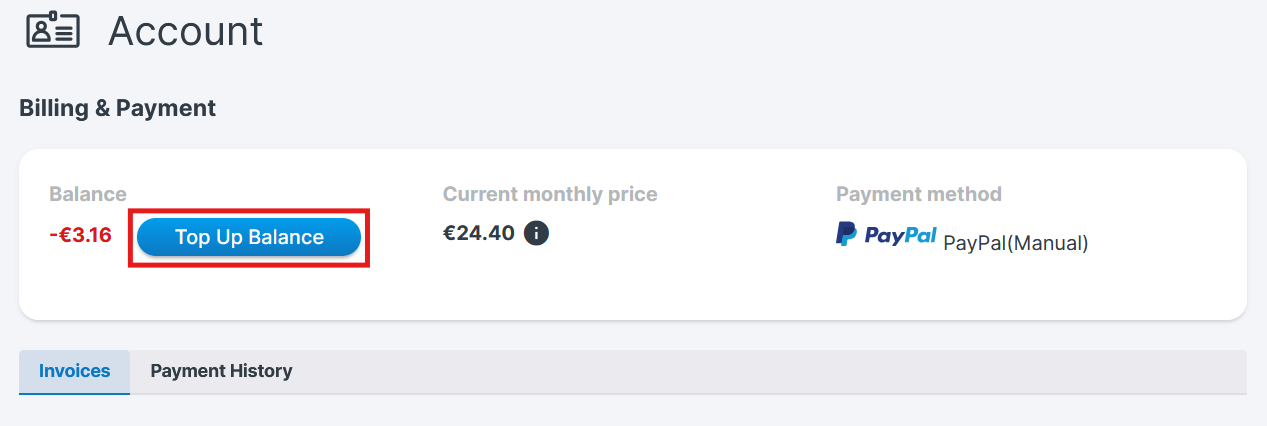
3. Click on Top Up Balance
- Click on the Top Up Balance button.
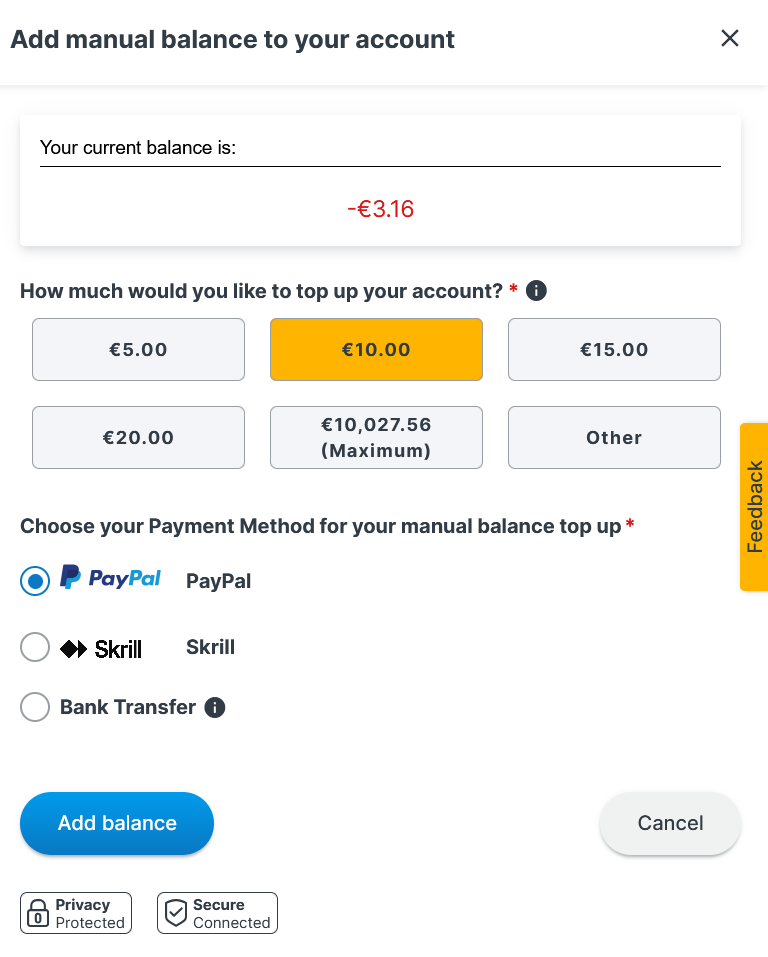
4. Add manual balance
- Choose the amount you want to add to your account.
- Select the payment method for the top up. ⚠️Please note that if you select Bank Transfer, it may take up to two weeks for the top up to appear on your account. Make sure to complete the transfer in time.
- Click Add balance.
5. Complete the payment
- You will be redirected to the payment page for the selected method. Complete your payment on that page.
- Please note that:
- Immediate / near-instant: Top-ups via Credit Card or PayPal are processed immediately (or very quickly).
- Up to 3 business days: Manual PayPal payments and similar methods may take up to 3 business days.
- Up to 2 weeks: Bank transfers can take up to two weeks.
- To verify that your payment was successful, check the Billing & Payment section.
Consider Switching to Automated Payments
To avoid having to manually top up your account each billing cycle, we recommend switching to automated payments via Credit Card or PayPal. This way, your payments will be processed automatically, reducing the risk of service suspension or data loss due to a missed or delayed payment. See How can I switch manual payments to automatic payments?
Was this article helpful?
That’s Great!
Thank you for your feedback
Sorry! We couldn't be helpful
Thank you for your feedback
Feedback sent
We appreciate your effort and will try to fix the article
