How to reset the Windows administrator password on a Contabo VPS
When you install or reinstall a Windows Server operating system on a Contabo server, an initial password for administrative access (Administrator account) is provided.
If you have lost or forgotten the Administrator password, you can reset it by booting the server into Rescue Mode and manually clearing the password.
The steps below explain how to reset the local Windows Administrator password on a Contabo server using Rescue Mode.
Step 1: Activate rescue system
Before the Administrator password can be reset, the server must be started in Rescue System.
1. Log in to the Contabo Customer Panel
2. Select the affected server from the Servers & Hosting drop-down menu
3. Activate the Rescue System
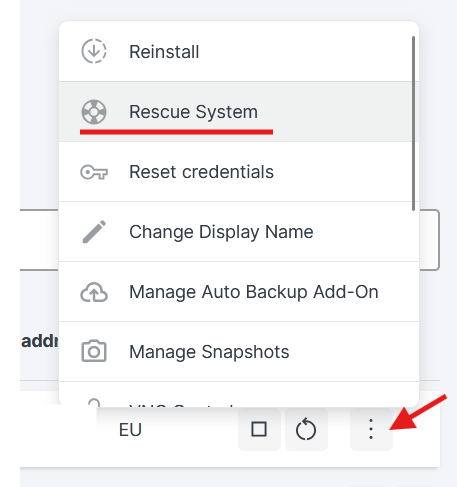 4. Reboot the server
Once Rescue System is active, you will receive temporary login credentials for SSH access.
Note: Rescue System runs a Linux-based environment that allows access to the Windows disk.
Step 2: Connect to the Server and Mount the Windows Partition
Connect to the server
Connect to your server using SSH with the Rescue Mode credentials.
Alternatively, you may use the VNC / KVM console from the Customer Control Panel.
Identify and mount the Windows partition
In most cases, the Windows system partition is /dev/sda2.
First, repair and mount the partition:
ntfsfix /dev/sda2
mount -t ntfs-3g /dev/sda2 /mnt
If mounting fails, verify the correct partition using:
lsblkStep 3: Clear the Administrator Password
The Windows user database is stored in the SAM file. This file can be edited using the chntpw tool.
List Windows user accounts
chntpw -l /mnt/Windows/System32/config/SAM Example output:
| RID -|---------- Username ------------| Admin? |- Lock? --|

| 01f4 | cloudbase-admin               | ADMIN | dis/lock |

| 03e8 | cloudbase-init                | ADMIN |         |

| 01f7 | DefaultAccount                |       | dis/lock |

| 01f5 | Guest                         |       | dis/lock |

| 01f8 | WDAGUtilityAccount            |       | dis/lock |
In most cases, Administrator is the correct account.
Reset the password
Run the following command:
chntpw -u Administrator /mnt/Windows/System32/config/SAMIf the account name Administrator does not exist, try:
chntpw -u admin /mnt/Windows/System32/config/SAMOr:
chntpw -u cloudbase-admin /mnt/Windows/System32/config/SAM
Clear the password
When the User Edit Menu appears:
1. Type 1 → Clear (blank) user password
2. Press Enter
If the account is disabled, use option 2 first to unlock it.
Then:
- Type q to quit
- Confirm saving changes by typing y
You should see confirmation that the SAM file was written successfully.
Step 4: Reboot the server normally
Exit Rescue System and reboot the server back into normal operation.
The Administrator account now has no password set.
⚠️Security warning:
While the Windows instance is running without an Administrator password, even for a short period of time, and is publicly accessible from the Internet, it may be vulnerable to unauthorized access.
For this reason, a new Administrator password must be set immediately after the reset process is completed.
Establish a connection via VNC and enter a new, simple password directly in the form. This password will be set for the administrator account. (The VNC keyboard layout is different in most cases. Therefore, create a simple password and then change it to a more complex one via RDP.)
Step 5: Set a New Administrator Password (Mandatory)
Set a new password
1. Connect to the server via RDP
2. Open Command Prompt as Administrator
3. Run:
net user Administrator *4. Enter and confirm a strong password
You can now log in normally using the new Administrator password.
For detailed guidelines, see How to Change the Windows Administrator Password.
Additional notes:
- This procedure resets the local Administrator account only
- Domain accounts are not affected
- BitLocker-encrypted disks must be decrypted before this method can be used
- Contabo Support cannot retrieve or view your passwords.
Was this article helpful?
That’s Great!
Thank you for your feedback
Sorry! We couldn't be helpful
Thank you for your feedback
Feedback sent
We appreciate your effort and will try to fix the article
