How to order a Contabo product
Ordering a server from Contabo is a straightforward process. In just a few steps, you can select your server, configure it to your needs, and complete the purchase.
Follow the guide below to place your order.
1. Choose a product
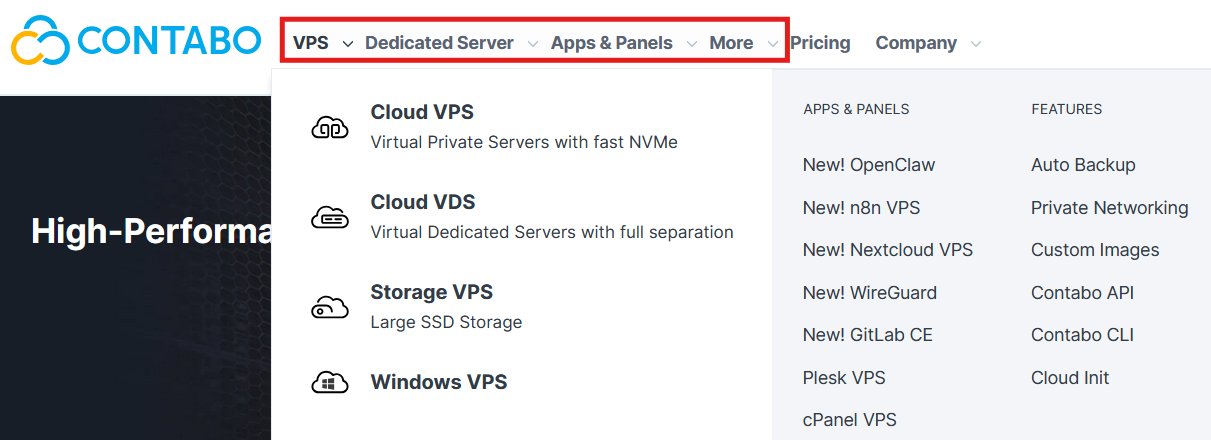
First, visit the Contabo website and select the type of server you want to purchase.
Available products include:
- VPS (Virtual Private Server)
- VDS (Virtual Dedicated Server)
- Dedicated Servers
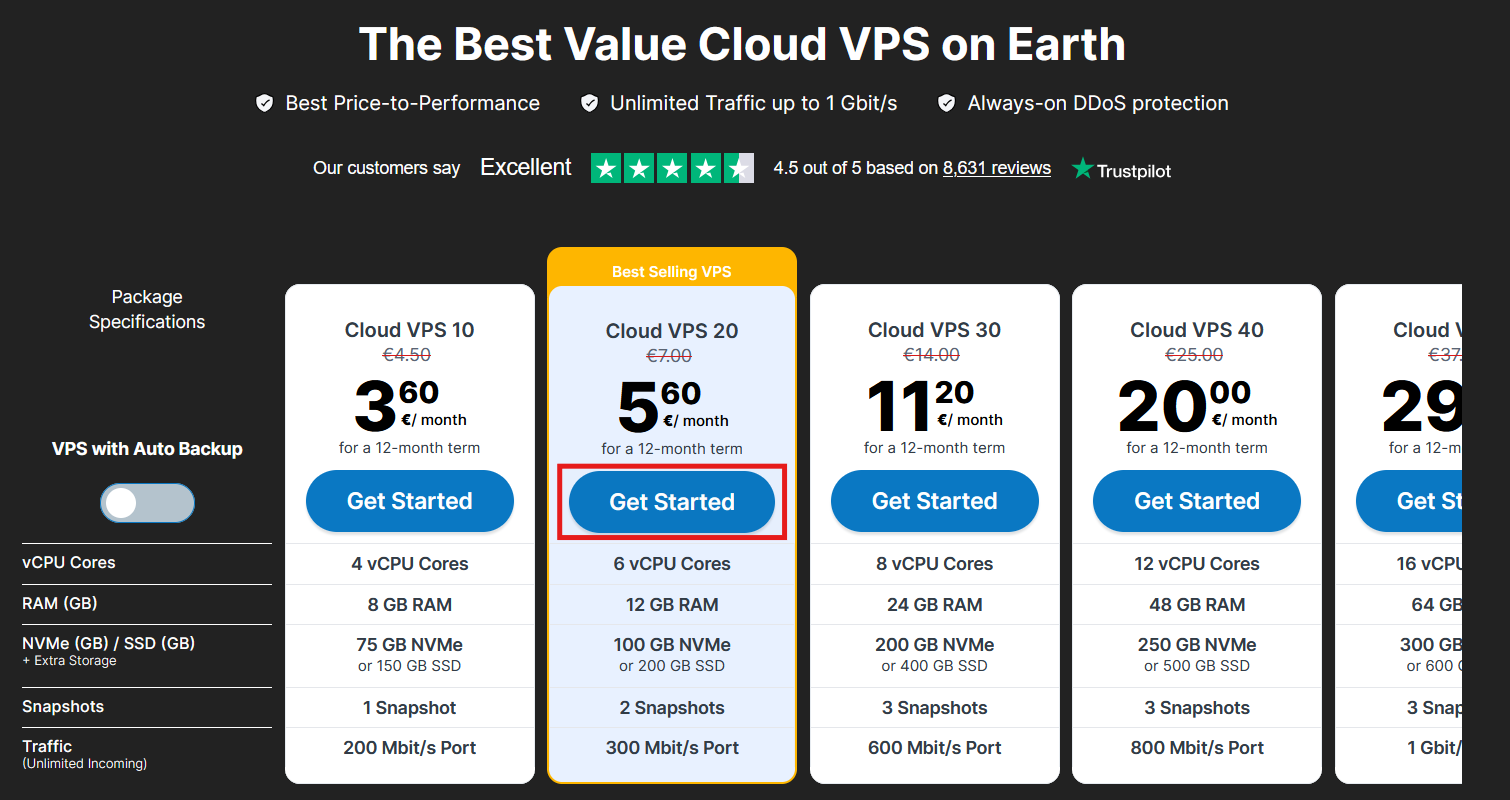
Each product page provides package specifications, such as CPU, RAM, storage, and pricing.
Once you find the server you want, click Get Started to continue.
2. Configure your server
Next, customize your server according to your requirements.
During this step, you may choose options such as:
- Billing period
- Data center location
- Storage type
- Operating System
- Additional services or add-ons, such as:
- Auto Backup (for Cloud VPS)
- Private Networking (for VPS/VDS) that allows you to add your instance to an unlimited number of private networks
- Server Monitoring
After selecting your desired configuration, set the password to your server. ️⚠️Important: Your password won't be stored or emailed to you. Keep it safe for Windows access; if the password is lost, a reinstall will be required.
You can add SSH keys later in the Customer Panel.
3. Enter your information
To complete your order, you must either:
- Create a new Contabo account, or
- Log in to your existing account
If you're a new customer:
Fill in the required fields under Personal Data in the 'I'm new to Contabo' section. These may include:
- First name and last name
- Email address
- Telephone number
- Address
- City and postcode
- Country and state/region
If you are ordering on behalf of a company, you may also enter:
- Business name (optional)
- VAT number (optional)
You will also be asked to confirm your email address to ensure it is entered correctly.
Once you fill out the relevant fields, continue to Step 4.
If you already have a Contabo account:
Enter your email and password. You can find the password in an email titled Contabo Customer ID: Control Panel Login Details. Continue to Step 5.
4. Choose a payment method
Select your preferred payment method.
Available payment options:
- Credit card
- PayPal
- Other supported payment methods depending on your region
Once selected, click Next to complete the order.
5. Review your order
Before completing your purchase:
- Review your order details to ensure everything is correct
- Check that you have selected the right product and configuration
- If you're a new customer, ensure you have entered the correct email address. Your login data will be sent to your email address.
- When you are ready, click Order & Pay to proceed.
What happens next?
Once your payment has been received, your server will be automatically provisioned. If you're a new customer, we will create a new Contabo account.
You will receive an email containing the login data to the Customer Panel, and another email titled “Your login data!” containing:
- Your server IP address
- Server login credentials (the server password is not included; we do not store your password)
- VNC access information
Next step: See Where can I find my server login details? for detailed information on accessing your server.
I have accidentally ordered a Contabo product, can I cancel the order?
Was this article helpful?
That’s Great!
Thank you for your feedback
Sorry! We couldn't be helpful
Thank you for your feedback
Feedback sent
We appreciate your effort and will try to fix the article
