Logging in to the new Customer Panel: first login, password and MFA
We’ve launched a new Customer Panel. Your account moves over the first time you log in - the Customer Panel guides you through the switch step by step. If you use multi-factor authentication (MFA, also called 2FA), keep your authenticator app or your old recovery code ready.
Having trouble logging in?
| What's happening | Where to look |
I’m not sure which authenticator code to use | Which code do I need?, below |
I forgot my password, or the reset email didn’t arrive | Forgot your password?, below |
It’s my first login, or my old password isn’t accepted | Your first login, below |
My code is rejected, or I lost my authenticator | I can't login to my account with multi-factor authentication, what can I do? |
I want to change my MFA (2FA) settings | |
A team member can't log in, or was a contact in the old panel |
Which code do I need?
| Your situation | Use this |
You don't use MFA | No code needed |
You haven't logged in to the new Customer Panel yet | The entry named my.contabo.com in your authenticator app, or your old recovery code |
You have already logged in to the new Customer Panel and set up MFA | The entry named Contabo in your authenticator app, or one of your new recovery codes. |
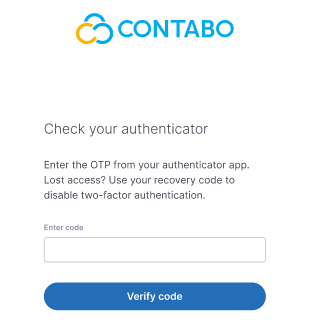
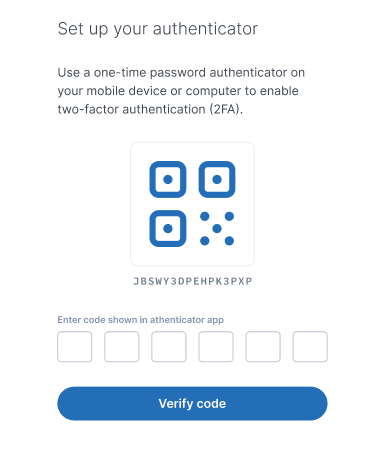
Not sure which code to use? Look at the login screen that asks for your code:
- One field: you’re on the old panel. Use the entry named my.contabo.com in your authenticator app.
- Six separate boxes: you’re on the new Customer Panel. Use the entry named Contabo in your authenticator app.
Enter one code per attempt, and don’t try both entries. After two wrong codes, account recovery is triggered. Code rejected? See I can’t login with multi-factor authentication.
Old Customer Panel: you enter the code in one box. Use the entry named my.contabo.com in your authenticator app.
New Customer Panel: you enter the code in six separate boxes. Use the entry named Contabo in your authenticator app.
Forgot your password?
- Open my.contabo.com and click Forgot password?
- Enter the email address linked to your Contabo account and click Submit.
- Open the email you received from us, and follow the link to set a new password.
If you already have a password for the new Customer Panel, the reset applies to it. If you have never set one, a form guides you through setting it, and this also completes your move to the new Customer Panel.
Didn't receive the reset email? Check your spam folder, then use the account recovery form and mention that you did not receive the link.
Your first login
- Go to my.contabo.com and log in with your email address and current password.
- MFA only: Enter the one-time code from the old Customer Panel entry in your authenticator app. The entry is named my.contabo.com. You can't continue without this code. If you can't reach your authenticator app, use your old recovery code instead.
- Set a new password. From now on, it is your only password.
- MFA only: Set up MFA again. Your old settings are not carried over. You can use any authenticator app. The new entry is named Contabo.
- MFA only: Save your new recovery codes somewhere safe.
If you have logged in to the new Customer Panel before and set a password there, log in with that password. If you use your old password, you are logged out and asked to use the new one. If you haven't set a password yet, your current password still works, and you set a new one after logging in.
Recovery codes
Upon your MFA (2FA) setup, you will be presented with a set of recovery codes that you can use whenever your authenticator doesn't work or you don't have it on hand. Keep them safe: Contabo cannot see or restore them.
If you haven't logged in to the new Customer Panel yet, your old recovery code works exactly once, together with your old password, at your first login. After that it is no longer valid.
Other changes after the switch
Contacts from the old panel were not moved. Give team members a sub-user account instead: How can I add more users under my account? Dedicated Server features can be found here.
Still stuck?
Fill in the account recovery form and describe what happens. For other questions, see How to contact Contabo Customer Support?
Related articles: I can't login with multi-factor authentication, what can I do? · I can't log in to the Contabo Customer Panel · How do I change my Multi-factor Authentication settings?
Was this article helpful?
That’s Great!
Thank you for your feedback
Sorry! We couldn't be helpful
Thank you for your feedback
Feedback sent
We appreciate your effort and will try to fix the article
